Your comments

Hello.
If you want to start iRidium client in a user session, you can to create a task in the Task Scheduler Windows. In this case, the user logs in (enters username/password), he on the desktop directly starts the application. If you want to start the app as a service before login a user, you can use nssm. So you can start any application, but it will have to be manually configured. Reference: http://nssm.cc/download
Which method you prefer? Need help setting up?
Only for TeamViewer: try to install the monitor driver.
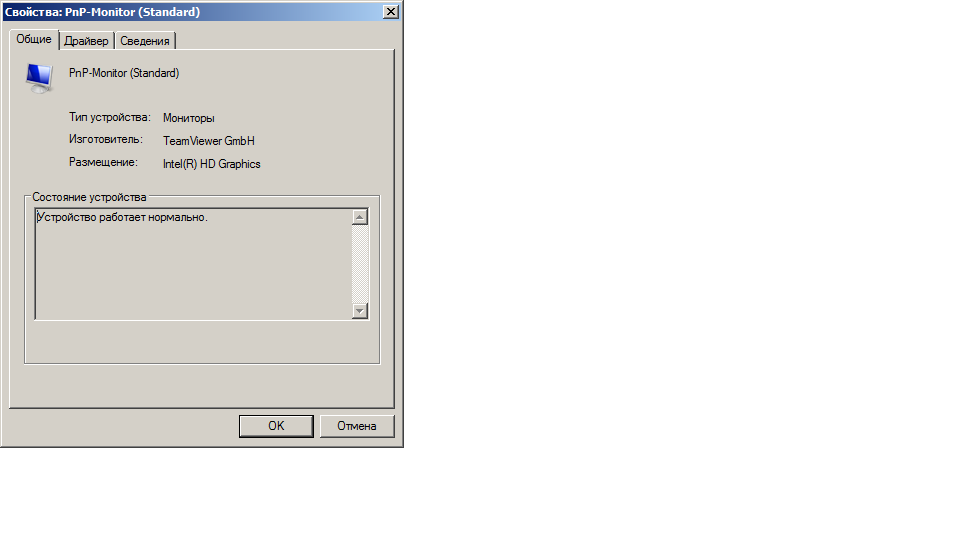
You can install the driver from TeamViewer:
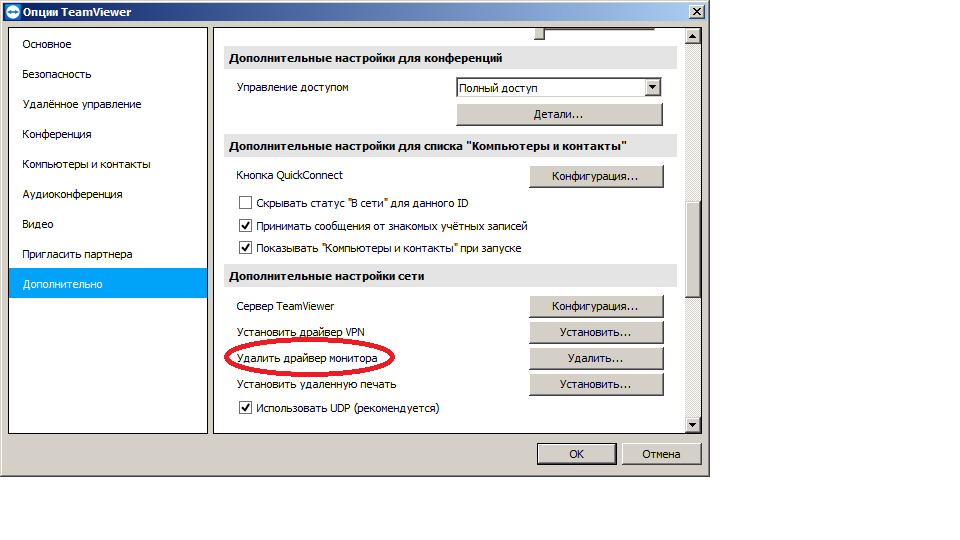
We do not guarantee that this method will help you to get rid of the black screen in fullscreen via TeamViewer. On problems TeamViewer should contact its developers.
Teamviewer I can not comment, because it uses a proprietary protocol and there are no publicly available documentation about how it transmits the image.
About VNC more clearly.
VNC viewer can not in the active session to change screen resolution dynamically. In some viewer (UltraVNC, RealVNC) there is Auto Scaling, but in this case it is useless, because it is triggered only when creating a VNC session.
You can do so.
1) connect via VNC,
2) start project,
3) transform the project in fullscreen - get the "black screen",
4) in the VNC session, send keystrokes "Ctrl+Esc" (do it like UltraVNC or TightVNC),
5) disconnect (just close the VNC window viewer),
6) again connect and get a rendered picture running application, in fullscreen (it is possible to work normally - until the next disconnect).
Repeat the above steps after the disconnect can be many times. If the server will use TightVNC, it is recommended to install the DFMirage Driver. This will improve the capture of the pixel data more efficiently and will help to better detect the screen refresh.
With Teamviewer such tricks don't work.
Hello.
For Intel HD very important a stable framerate, especially if the screen resolution changes dynamically. Locally no problems. When switch i3Pro in full screen, the resolution changes to what is specified in the project settings. If it is greater than actual, the VNC session will see only "black screen". In some cases you can work around this, but it's not a problem of the render. This is a problem of the device.
Hello.
If your devices do not support OGL 3.0, then the rendering in i3Pro will not work. If there is DX11, try temporarily using DX11 instead of OGL. Probably the problem is in fullscreen via VNC will not appear. Note: DX11 is beta, use it with caution.
Make sure that the device you connect supports OpenGL 3.0 and correctly working with him (do a load test on your hardware). Westmere Microarchitecture (Socket 1156) will not work, because it only supports OpenGL 2.1.
Hello.
What is Render in the panel project (OGL, DX11, etc.)?
Hello.
If you want a solution without scripting, it is possible to use a Scheme Blocks.
Example attached.
In the attached example: if the feedback "Virtual 1" comes to a value less than 20, then the project panel shows "0" (red field). If the feedback "Virtual 1" is coming 20 or more, it transferred to the feedback "Virtual 2" and the project panel displays the integer part of the obtained value (green field).
If you connect via RDP or Radmin - the problem remains? TeamViewer uses its own proprietary protocol. It is not documented in transfer of the image. We got the normal work of the presented project in full screen when connecting via RDP and connect via Radmin. You need to match the project resolution and screen resolution on computers.
Customer support service by UserEcho


Hello.
Get task scheduler in Windows 10:
WIN+R
taskschd.msc
Press Ok
Not working?
If the application needs to start, but without displaying a desktop (for example, it is already configured and does not require the input of some data and/or you don't need something to track), then you can install it as a Windows service. Then the app starts when the computer boots and before the user logs in. You can do it using nssm. For this you need to download the archive from binary files: http://nssm.cc/download
For Windows 10 you need to use version 2.2.4-101. Unzip the file and place the disk (for example on C:\bin\nssm-2.24-101-g897c7ad). Open cmd or powershell and run:
cd C:\bin\nssm-2.24-101-g897c7ad\win64\
install nssm iridium
Opens a GUI in which you need to specify settings. A must-have in your case is only a field Path - specify the location of the binary file of the iridium client (by default here: C:\Program Files (x86)\Ltd iRidium\iRidium Pro\iRidium\iRidium.exe). The remaining parameters can be left unchanged. Click "Install service". In the console management services to turn AutoPlay on the newly created service. If you need to see the window client Irudium, you can set the interact with desktop, but then it is better to use not nssm, and to use task scheduler.
The purpose of nssm - configure ANY application as a service: to correctly start, restart and stop the service on behalf of any account, including the system. Use with caution.